


Download PowerResizer – Free Windows & Mac Tool for Smart Window Management
PowerResizer is a lightweight, efficient desktop utility designed to help you organize your workspace with precision and speed. Whether you're juggling multiple applications for work, studying, or creative projects, PowerResizer simplifies window management by automatically resizing and positioning windows with just a few clicks or keyboard shortcuts. This free tool runs quietly in your system tray, ready to assist whenever you need it.
With intuitive drag-and-drop functionality and customizable hotkeys, PowerResizer lets you split your screen into halves, quarters, or even full-screen layouts in seconds. Perfect for multitaskers, remote workers, and digital professionals, it maximizes productivity by eliminating the frustration of manually resizing and repositioning windows. The software is compatible with Windows and Mac, offering seamless performance across platforms.
Its minimal design ensures it doesn’t slow down your system, making it a secure and reliable choice for everyday use. Whether you're comparing documents, coding, or managing emails and spreadsheets side by side, PowerResizer helps you stay focused and efficient. Download PowerResizer today and transform how you interact with your desktop.
Key Features of PowerResizer
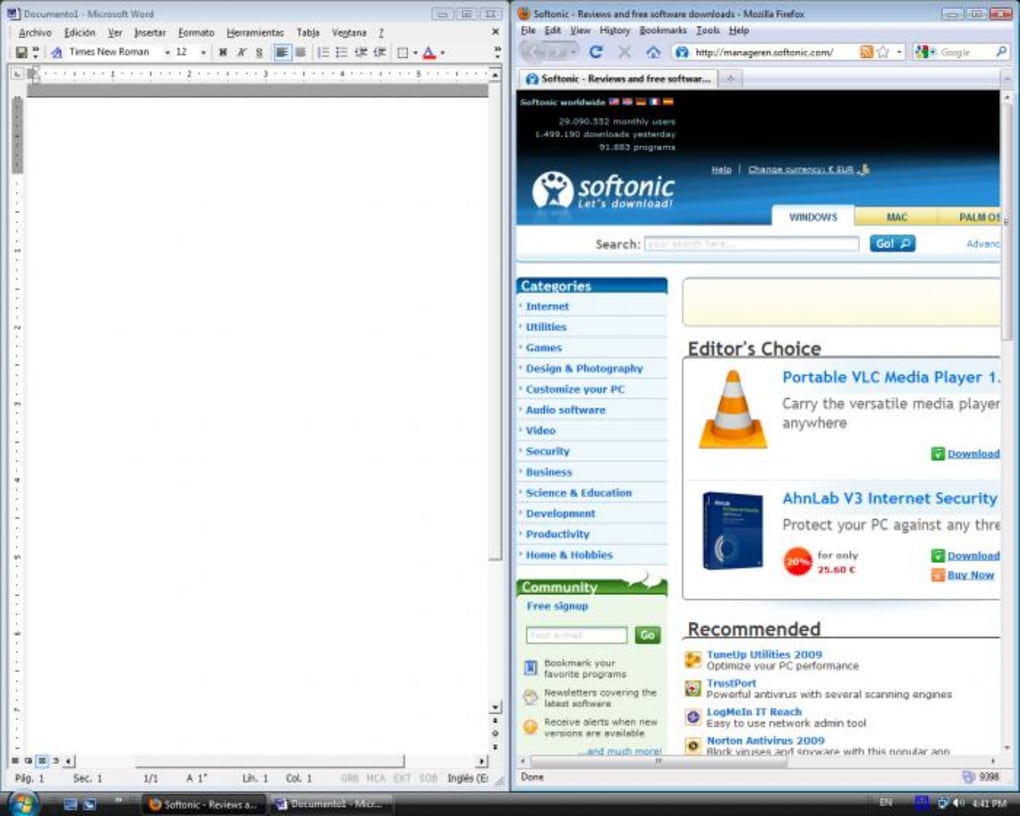
PowerResizer stands out in the crowded market of window management tools thanks to its simplicity, speed, and powerful automation. One of the standout features is its drag-to-align functionality. Simply grab any open window and drag it to the left, right, top, or bottom edge of your screen—PowerResizer instantly resizes it to occupy exactly half the screen, enabling perfect side-by-side layouts.
This is ideal for tasks like comparing reports, editing videos while referencing scripts, or monitoring chat windows during virtual meetings. The tool also supports keyboard shortcuts: pressing numbers 1 through 4 quickly positions the active window in one of the four corners, allowing you to manage up to four windows simultaneously with full visibility. Numbers 5 to 0 offer further control—5 to 9 adjust the window size incrementally, while 0 maximizes the window to full screen.
This level of control is particularly useful when switching between focused work and broad overviews.
Another major advantage is its unobtrusive design. PowerResizer runs in the system tray, consuming minimal system resources and never interrupting your workflow. You can easily disable or re-enable the app with a right-click on the icon, giving you full control over its operation.
The software is also highly responsive, with near-instant resizing that feels natural and fluid. Unlike heavier alternatives, PowerResizer doesn’t require complex setup or configuration. It’s ready to use the moment you install it.
While it lacks advanced customization options—such as defining custom hotkeys or setting specific window dimensions—it delivers on its core promise: fast, reliable window organization. For users who value simplicity and speed over granular control, this is a major plus. Additionally, the tool is completely free to download and use, with no ads or in-app purchases, making it an excellent choice for students, freelancers, and professionals alike.
How to Install and Use PowerResizer
Installing PowerResizer is a breeze, whether you're on Windows or Mac. Begin by visiting the official download page and selecting the version that matches your operating system. The installer is small in size—typically under 10MB—ensuring a quick and secure download.
Once downloaded, run the installer and follow the on-screen prompts. The process takes less than a minute and doesn’t require administrative privileges on most systems. After installation, PowerResizer automatically launches and appears in your system tray (bottom-right corner on Windows, top-right on Mac), ready to use.
To start using the tool, open any application window you’d like to resize. Then, simply drag the window to one of the screen edges—left, right, top, or bottom—and PowerResizer will instantly resize it to occupy half the screen. Alternatively, you can use keyboard shortcuts: press 1, 2, 3, or 4 to snap the active window to the four corners.
For more precise control, use numbers 5 to 9 to scale the window down to a smaller size, and press 0 to maximize it. The changes are immediate and reversible, so you can experiment freely. If you want to disable PowerResizer temporarily, right-click its system tray icon and choose “Exit” or “Disable.” You can re-enable it anytime from the system tray or via the startup settings.
The app also supports automatic startup, so it launches every time you turn on your computer—perfect for consistent workflow optimization. For users who prefer not to use hotkeys, the drag-and-drop method is fully intuitive and requires no learning curve. Overall, PowerResizer is designed for effortless integration into your daily routine.
Compatibility and System Requirements
PowerResizer is engineered for broad compatibility, supporting both major operating systems: Windows 7 and later (including Windows 10 and 11), as well as macOS 10.13 (High Sierra) and newer versions. This ensures that users across a wide range of devices—from older laptops to the latest MacBooks—can benefit from its window management features. The software is lightweight, requiring only a few megabytes of RAM and minimal CPU usage, making it suitable even for low-end machines or systems with limited resources. It works seamlessly with multi-monitor setups, automatically detecting screen boundaries and applying resizing rules across all displays. Whether you're using a dual-screen workstation or a portable laptop with an external monitor, PowerResizer adapts instantly.
Additionally, the app is compatible with most popular window managers and desktop environments, including Windows Explorer, macOS Finder, and third-party tools like DisplayFusion or BetterSnapTool. It does not conflict with other productivity software, so you can run it alongside task managers, note-taking apps, or communication platforms without performance issues. The installation process is safe and secure, with no bundled malware or unwanted software.
All downloads are verified and signed to prevent tampering. PowerResizer also receives regular updates to fix bugs, improve stability, and enhance compatibility with new OS versions. These updates are delivered automatically through the app’s built-in updater, ensuring you always have the latest, most secure version.
For users who value privacy, PowerResizer does not collect or transmit any personal data, making it a trustworthy tool for both personal and professional use.
Pros and Cons of PowerResizer
- Pros:
- Lightweight and fast—minimal impact on system performance
- Intuitive drag-and-drop window snapping to edges
- Quick keyboard shortcuts (1–0) for corner and size control
- Runs silently in system tray—never interrupts workflow
- Free to download and use with no ads or in-app purchases
- Compatible with Windows and Mac, including multi-monitor setups
- Cons:
- Limited customization—cannot redefine hotkeys or window sizes
- No built-in settings panel for advanced users
- Lacks support for custom screen layouts or zones
- Minimal documentation or tutorial resources
- Update notifications are not always clear or timely
Frequently Asked Questions (FAQ)
Is PowerResizer free to download and use?
Yes. PowerResizer is completely free to download, install, and use. There are no hidden fees, subscriptions, or in-app purchases. It’s ideal for students, freelancers, and professionals seeking a no-cost solution for efficient window management.
Can I use PowerResizer on Mac and Windows?
Yes. PowerResizer supports both Windows (7 and later) and macOS (10.13 and above). It works seamlessly on laptops, desktops, and multi-monitor setups across both platforms.
How do I disable PowerResizer temporarily?
Right-click the PowerResizer icon in your system tray (Windows) or menu bar (Mac), then select “Exit” or “Disable.” The app can be re-enabled anytime from the same menu.
Can I customize the keyboard shortcuts?
No. PowerResizer uses fixed keyboard shortcuts (1–0) and does not allow users to redefine them. This is a limitation for users who prefer custom key bindings.
Does PowerResizer work with multiple monitors?
Yes. The tool automatically detects all connected displays and applies window snapping rules across each screen. You can drag windows to edges of any monitor for instant layout adjustments.
Final Verdict: Is PowerResizer Worth Downloading?
PowerResizer is a must-have tool for anyone who values a clean, organized, and efficient desktop. Despite its minimal feature set, it delivers exceptional performance in its core function: window management. Its drag-and-drop interface and keyboard shortcuts make multitasking effortless, allowing you to split your screen into halves or quarters in seconds. While it lacks advanced customization options—such as custom hotkeys or zone presets—it excels in simplicity, speed, and reliability. For users who don’t need complex configurations, PowerResizer offers a streamlined experience that just works.
Whether you're a student managing research tabs, a developer juggling code and documentation, or a remote worker coordinating video calls and spreadsheets, PowerResizer helps you stay productive without distractions. The software is secure, free, and compatible with both Windows and Mac, making it accessible to a wide audience. If you're looking for a lightweight, no-frills tool to maximize your screen space, PowerResizer is one of the best options available. Don’t wait—download PowerResizer today and take control of your desktop like never before.
Download PowerResizer now and experience smarter window management on your Windows or Mac device.







